Complicate It is an app for Apple Watch that allows you to quickly place any text you want directly on your watch face.
To set up the app:
- Download the Complicate It app for iPhone
- Go to the App Store app on your iPhone.
- Search for “Complicate It.”
- Tap “Get.” (Or the download button, if you’ve previously installed it.)
- Download the Complicate It app for Apple Watch.
- On your iPhone, open the app called “Watch.” (It has an icon of an Apple Watch on it.)
- In the Watch app, scroll to the bottom of the page.
- At the bottom of the page, you should see Complicate It, either in the “Installed on Apple Watch” section or in the “Available Apps” section.
- If Complicate It is in the “Available Apps” section, tap “Install.”
- Enable the Complicate It complication on your watch face.
- From your watch face, press hard on your screen.
- Tap “Customize.”
- Swipe to the last page on the right.
- Select a complication slot.
- Scroll to Complicate It.
- Press hard on your watch face again to confirm.
- Congrats, your Apple Watch is ready to use Complicate It!
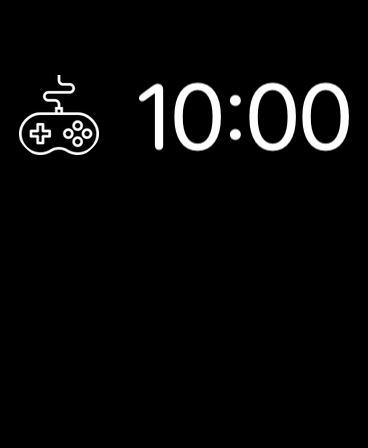
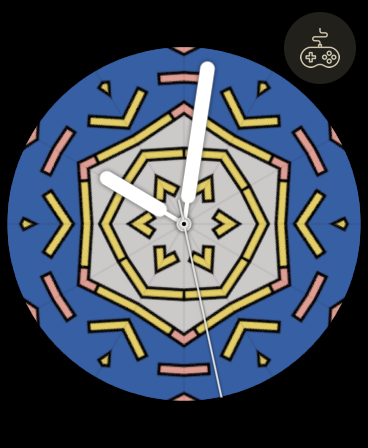
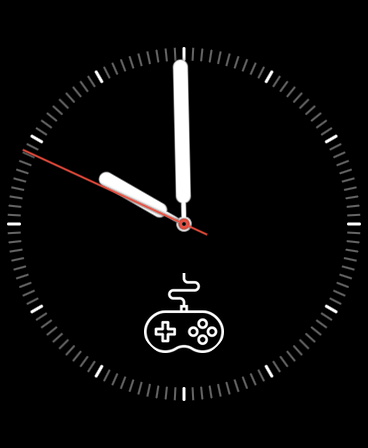
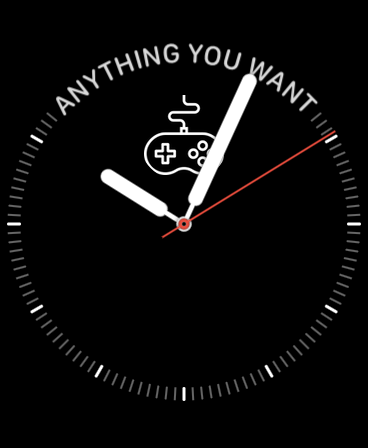
Note: Not all complication slots are compatible with Complicate It. In addition, some complication slots are only available to users who pay for the Badge in-app purchase. You can identify these complications slots by whether or not they have an image when you select them. The complication slots with images are only available to Badge customers.
Free Features
Basic Complications:
The Basic Complication is a way to put simple text (or emojis) directly on your watch face. To set a Basic Complication:
- Select Basic.
- Enter text that you want to see on your watch face. (You can type using the iPhone app or speak using the Apple Watch app.)
- If using the iPhone app, tap “Done.”
- Good job, you should see your text on your watch face! Basic text will remain on your watch face unless you change it or use another complication type.
Premium Features
Complicate It has five different features. The first one, the Basic Complication, is free. The other four are paid features that will require an in-app purchase to unlock. You can pay for each feature individually or buy the Master Unlock to unlock all features at a discount.
Scheduled Complications
Scheduled Complications allow you to enter text or emojis (just like with Basic Complications). The added benefit is that they don’t have to show up immediately. You can choose the time that you want them to appear on your watch face. To use Scheduled Complications:
- Select Scheduled.
- Enter text that you want to see on your watch face.
- Select a date and time that you would like the text to appear on your watch face.
- Select Done.
- If using the iPhone app, you can add more than one at a time. Select Done when you have added all of the Scheduled Complications that you’d like.
Random Complications
Random Complications are a fun way to give your watch face some personality without constantly updating your text manually. You can create a group of phrases that you’d like to display on your watch face, and the Apple Watch app will randomly select one every so often. To use Random Complications:
- Select Random.
- Select Add. (Or New Complication if using the iPhone app.)
- Enter a phrase that you would like to see on your watch face.
- Select Done.
- If using the iPhone app, you can add more than one at a time. Select Done when you have added all of the Random Complications that you’d like.
- Your watch will cycle through Random Complications until you create a different (non-Random) type of Complication. To re-activate Random Complications:
- Open the Complicate It Apple Watch app.
- Select Random.
- Select Activate.
Countdown Complications
Countdown Complications allow you to display a countdown towards an anticipated event directly on your watch face. To set up a Countdown Complication:
- Select Countdown.
- Enter the name of the event you are counting down towards.
- Select the date and time of the event.
- Select Done.
Badge Complications
Badge Complications are a way for you to personalize your watch face a bit more by displaying a simple icon. You can select from the icons that exist in the app. There is currently no way to add custom icons to the app. To set a Badge Complication:
- Select Badge.
- Select an icon.
- Make sure you have a complication slot enabled that displays icons.
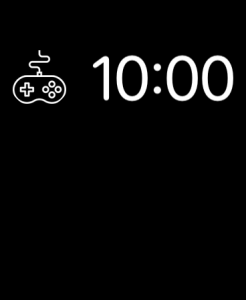
- Modular small
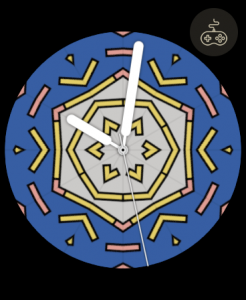
- Circular small
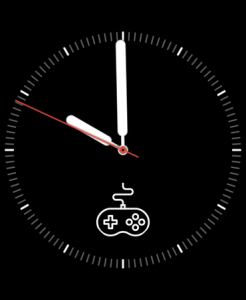
- Graphic circular
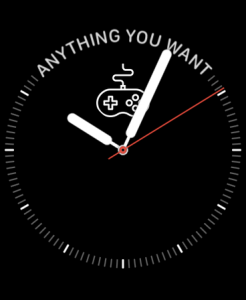
- Graphic bezel
- Modular small